

Running a Local AI Inside Obsidian with Ollama

What if your notes could think with you, without sending a single word to the cloud? In this article, we’ll build a fully local AI setup inside Obsidian using Ollama and the open Gemma 3 model. You’ll learn why local AI makes sense for knowledge work, how to install and test Ollama from the command line, how to connect it to Obsidian using community plugins, and how to use it for practical, everyday note-taking workflows, all while keeping full control over your data.
Why Local AI in a Notes App?
Section titled “Why Local AI in a Notes App?”Before jumping into installation, it’s worth clarifying what is and isn’t open source in this setup, and why it still aligns strongly with open source values.
Obsidian is an application that allows users to create and manage notes using plain text Markdown files stored locally on their devices.
Obsidian is not open source itself, but supports open source community plugins, and is local-first:
- Notes are plain Markdown files
- Stored on your own filesystem
- No mandatory account or cloud dependency
- Easy to migrate, back up, or process with other tools
This dramatically reduces vendor lock-in. Even without Obsidian, your knowledge remains usable.
Ollama is an open source tool that lets you run AI models locally on your machine:
- Runs open models locally
- Exposes a local HTTP API
- Requires no internet once models are installed
- Never sends your data elsewhere
Together, Obsidian and Ollama create a powerful combination that aligns with open source values: local notes, local AI for privacy, and knowledge work that you actually control.
What We’ll Build
Section titled “What We’ll Build”By the end of this article, you’ll have:
- Ollama installed and verified from the command line
- The Gemma 3 model running locally
- Obsidian configured with community plugins
- A fully local AI assistant embedded in your notes
Everything described below has been tested using Gemma 3 with Ollama.
Let’s consider that Obsidian is already installed on your machine. If you haven’t done so yet, you can download it from obsidian.md.
Step 1: Install and Test Ollama (Command Line First)
Section titled “Step 1: Install and Test Ollama (Command Line First)”-
Install Ollama from the official site at https://ollama.com, or via Homebrew on macOS via
Terminal window brew install ollama -
Verify the installation by running in your terminal:
Terminal window ollama --versionThe output should show the installed version of Ollama.
-
Pull and run the Gemma 3 model with:
Terminal window ollama run gemma3Once the model is downloaded, you’ll get an interactive prompt. Test it with:
Explain what a local-first application is in one paragraph.If you receive a response, everything is working correctly.
-
Exit the chat with the command:
Terminal window /bye -
Ollama also starts a local API server at http://localhost:11434.
Opening this URL in your browser will show the “Ollama API is running” message. This endpoint is what Obsidian will use next.
Step 2: Install the Required Obsidian Community Plugins
Section titled “Step 2: Install the Required Obsidian Community Plugins”To connect Obsidian to Ollama, you’ll need two open source Obsidian community plugins created by Pavel Frankov:
- AI Providers
- Local GPT
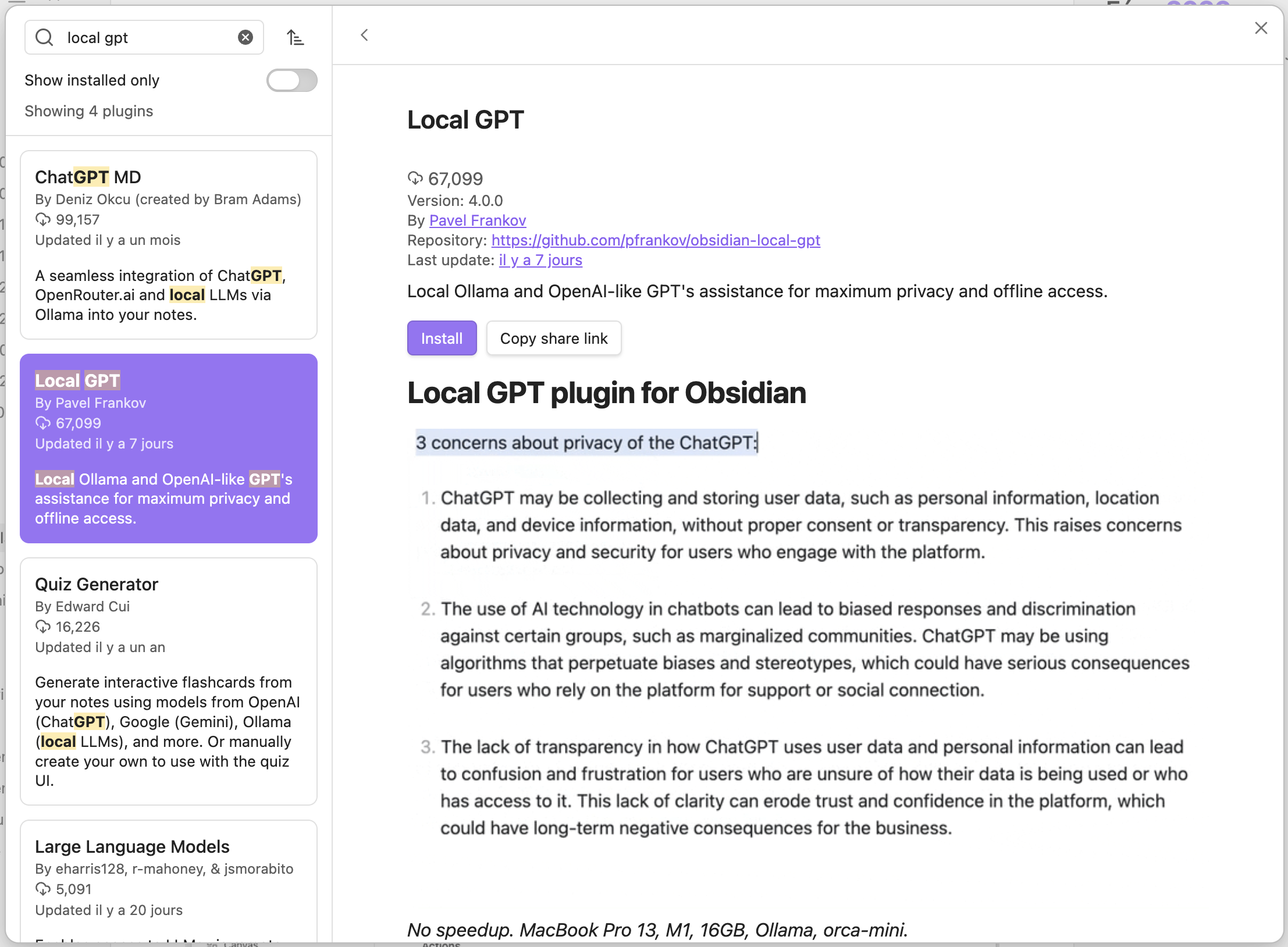
obsidian-local-gpt Local Ollama and OpenAI-like GPT's assistance for maximum privacy and offline access

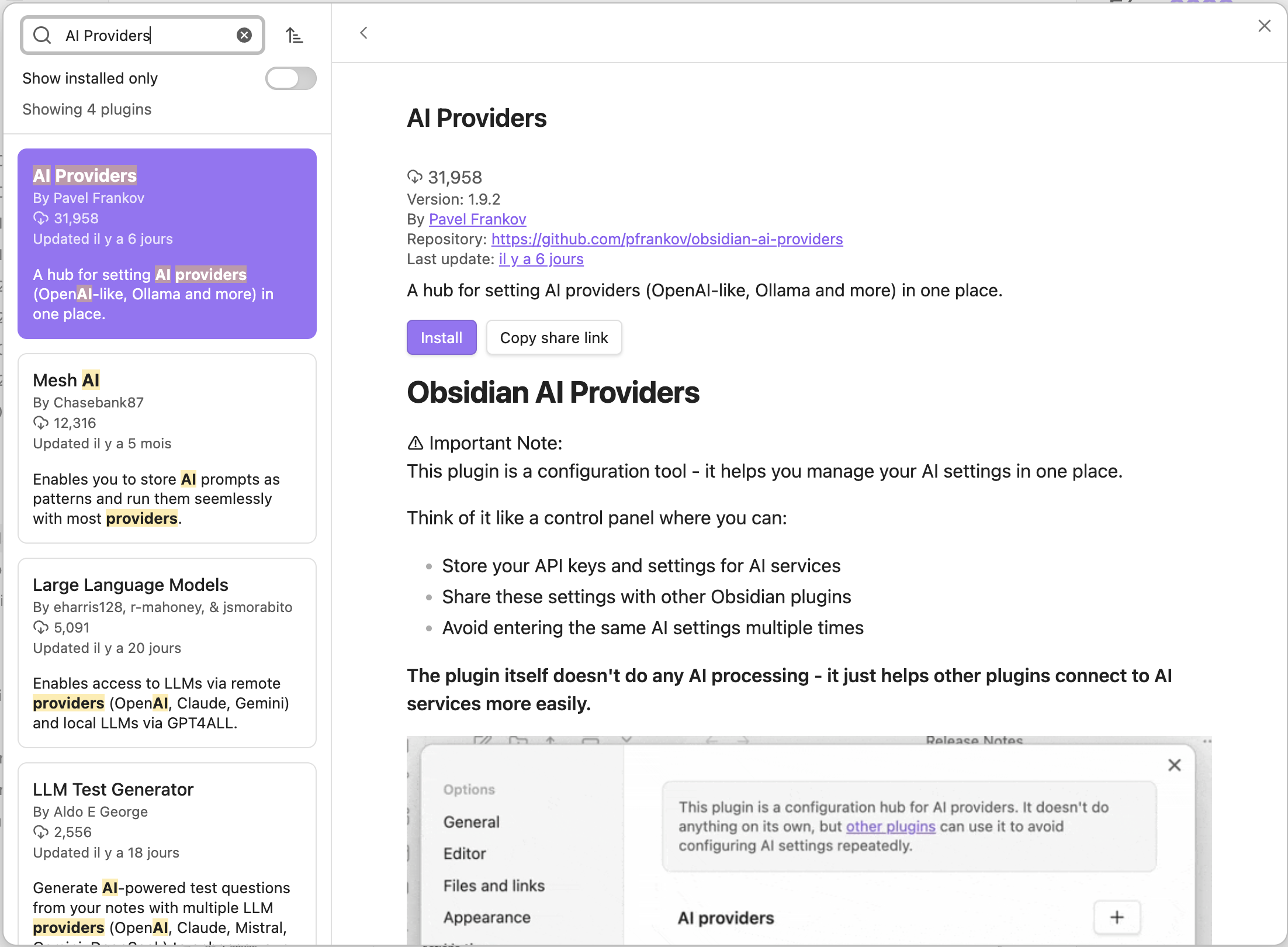
obsidian-ai-providers This plugin is a hub for setting AI providers (OpenAI-like, Ollama and more) in one place.
AI Providers
Section titled “AI Providers”Let’s start by installing the AI Providers plugin.
-
In Obsidian, go to “Settings → Community Plugins → Browse” and search for “AI Providers”.
-
Click “Install”, then “Enable” to enable the plugin.
-
Click “Options” to configure the plugin:
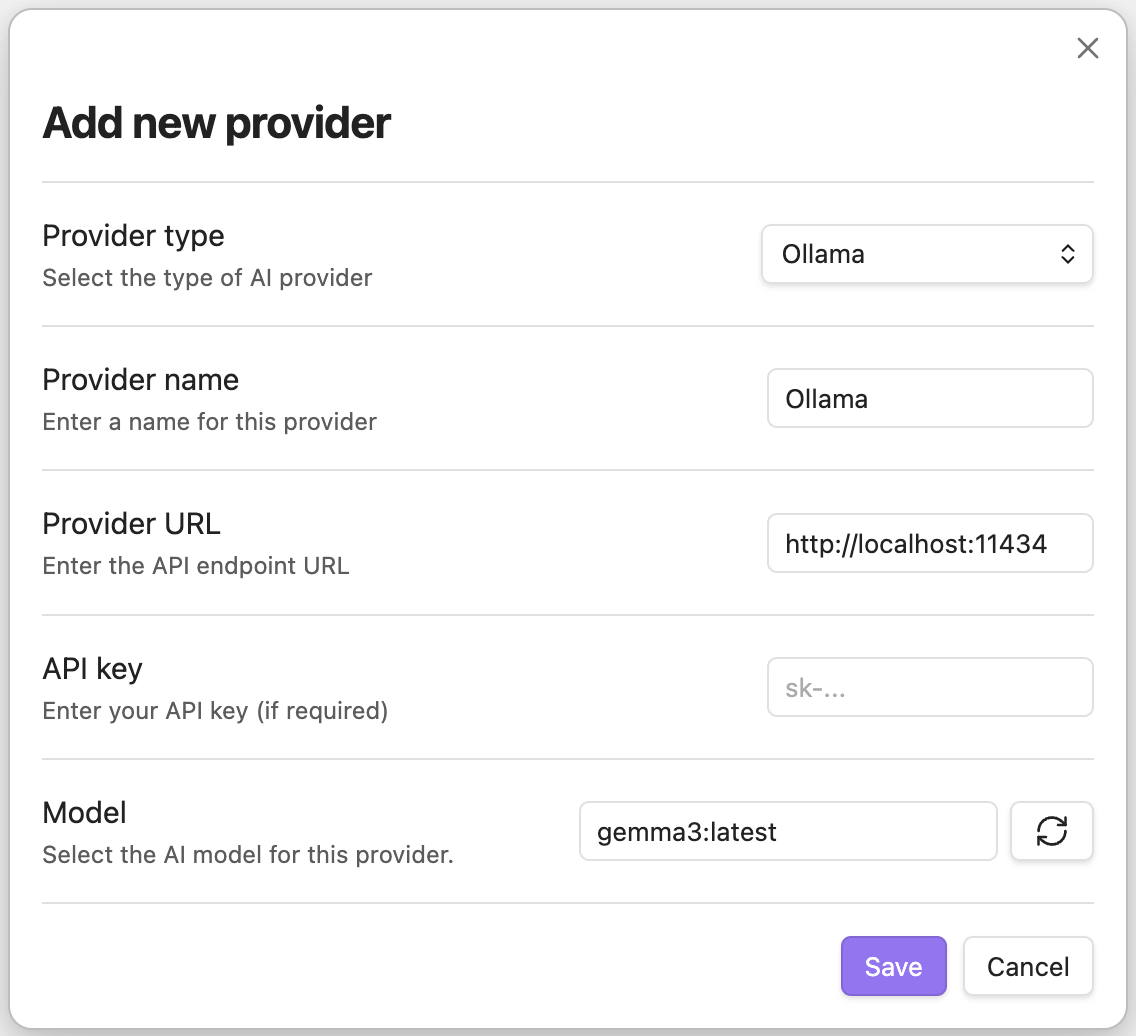
- In the “AI providers” section, click ”+” to add a new provider.
- In the “Add new provider” dialog:
- Select “Ollama” as the provider type.
- Click on the refresh icon of the “Model” field to fetch Gemma 3 from your local Ollama installation.
- Click “Save” to add the provider.
Local GPT
Section titled “Local GPT”Then, install the Local GPT plugin.
-
In Obsidian, go to “Settings → Community Plugins → Browse” and search for “Local GPT”.
-
Click “Install”, then “Enable” to enable the plugin.
-
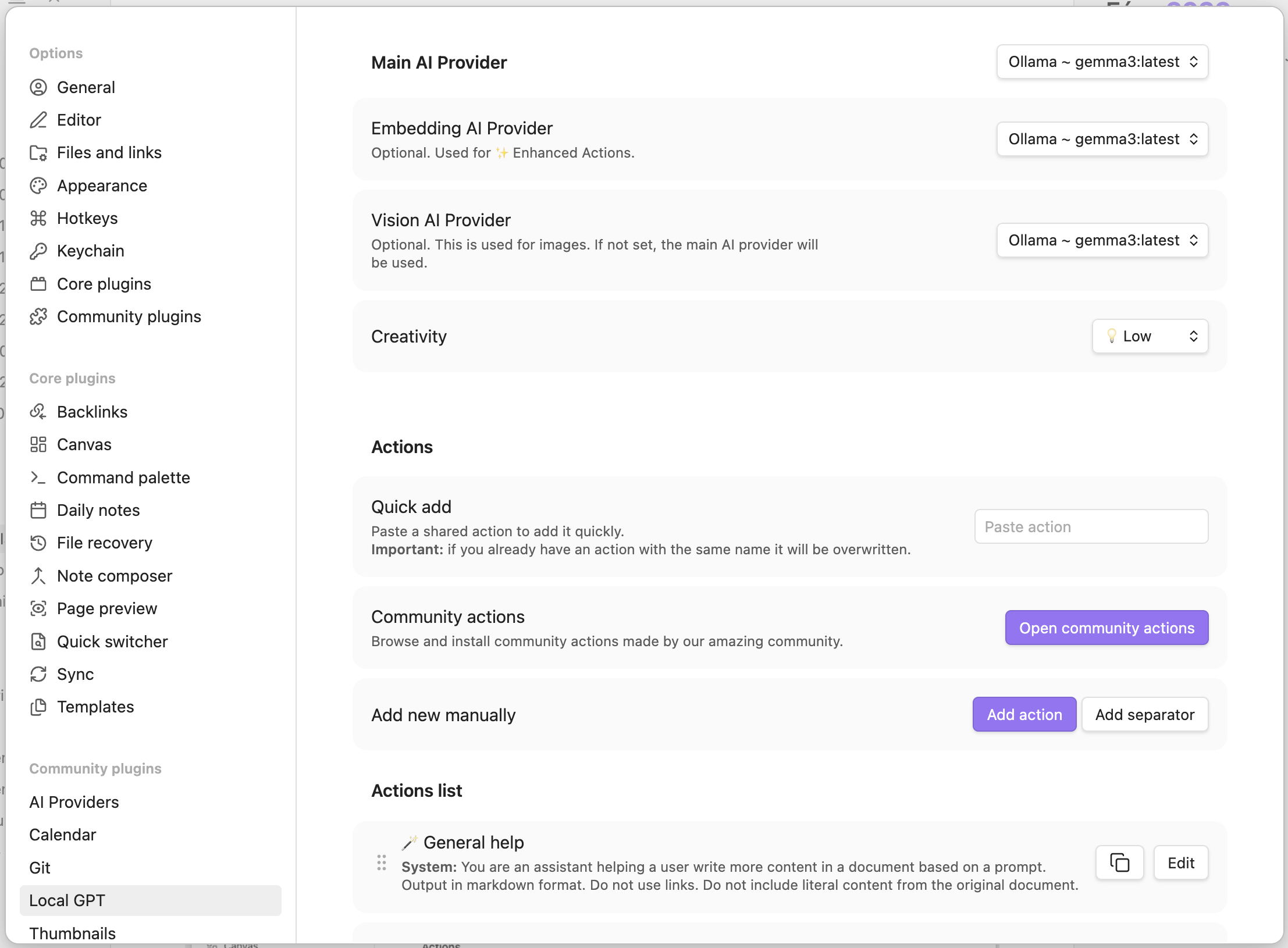
Click “Options” to configure the plugin:
- In the “Main AI Provider”, “Embedding AI Provider”, and “Vision AI Provider” sections, select “Ollama ~ gemma3:latest” from the dropdown.
Step 3: Attach Hot Keys for Quick Access
Section titled “Step 3: Attach Hot Keys for Quick Access”To quickly access Local GPT features, set up hot keys in Obsidian.
-
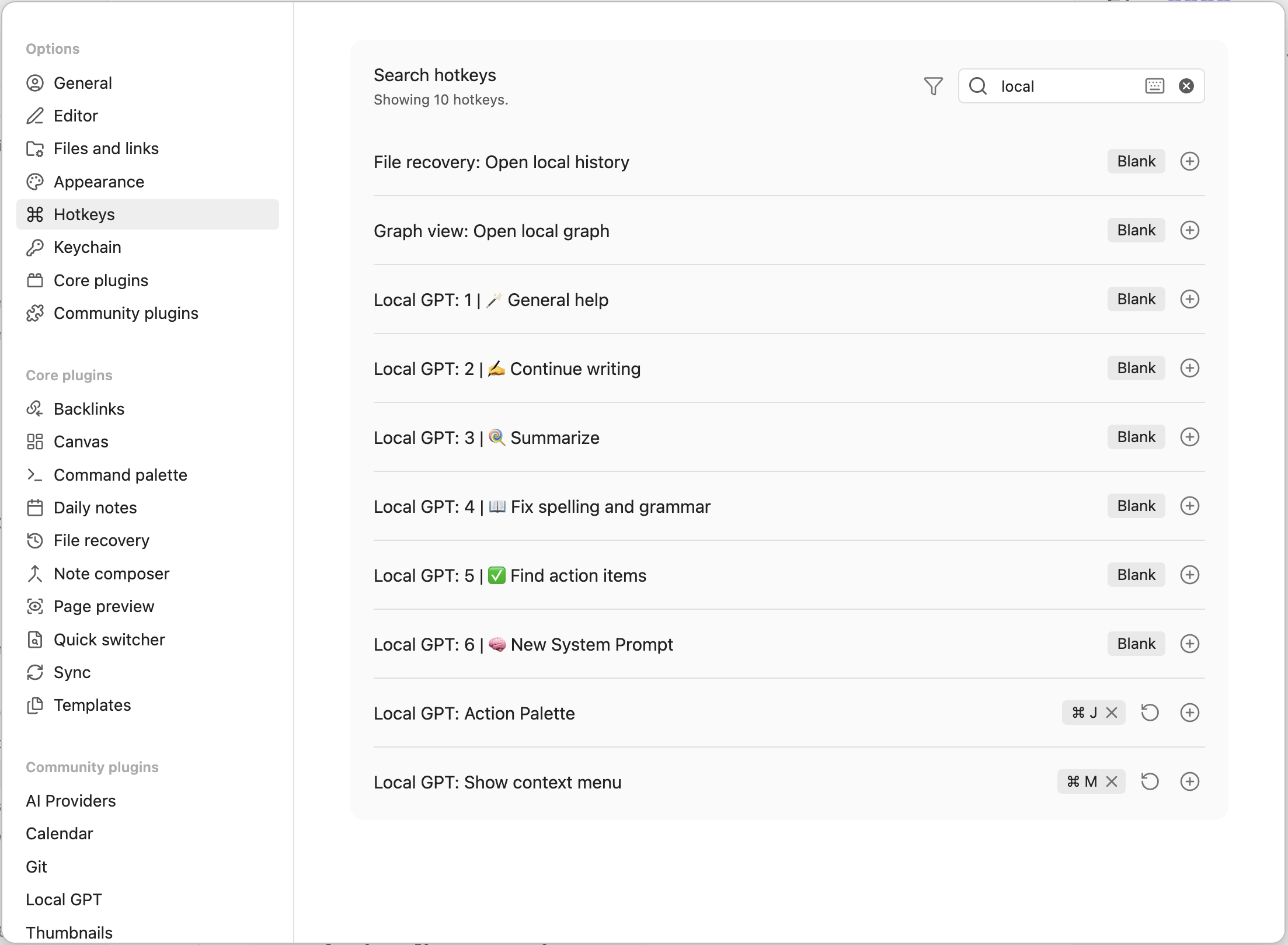
In Obsidian, go to “Settings → Hotkeys”.
-
Filter by “Local”.
-
Assign hot keys to the following commands:
- For “Local GPT: Action Palette”, click on ”+” and press your desired key combination (e.g., ⌘ + J).
- For “Local GPT: Show context menu”, click on ”+” and press your desired key combination (e.g., ⌘ + M).
Step 4: Test Local GPT Inside Obsidian
Section titled “Step 4: Test Local GPT Inside Obsidian”Now that everything is set up, it’s time to test Local GPT inside Obsidian.
Two hot keys are set up: one for the action palette and one for the context menu.
Using the Context Menu
Section titled “Using the Context Menu”The context menu is a quick way to apply AI actions to selected text.
-
Open any note in Obsidian.
-
Select some text you want to process with AI.
-
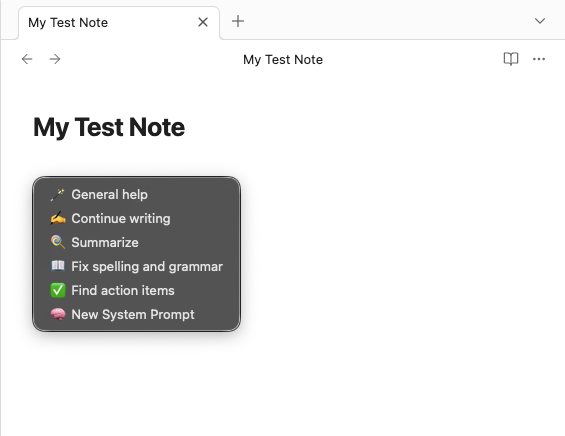
Press the hot key you assigned for “Local GPT: Show context menu” (e.g., ⌘ + M). It will open a context menu with various AI actions you can perform on the selected text:
- General help
- Continue writing
- Summarize
- Fix spelling and grammar
- Find action items
- New System Prompt
Please note that you can create your own custom prompts as well.
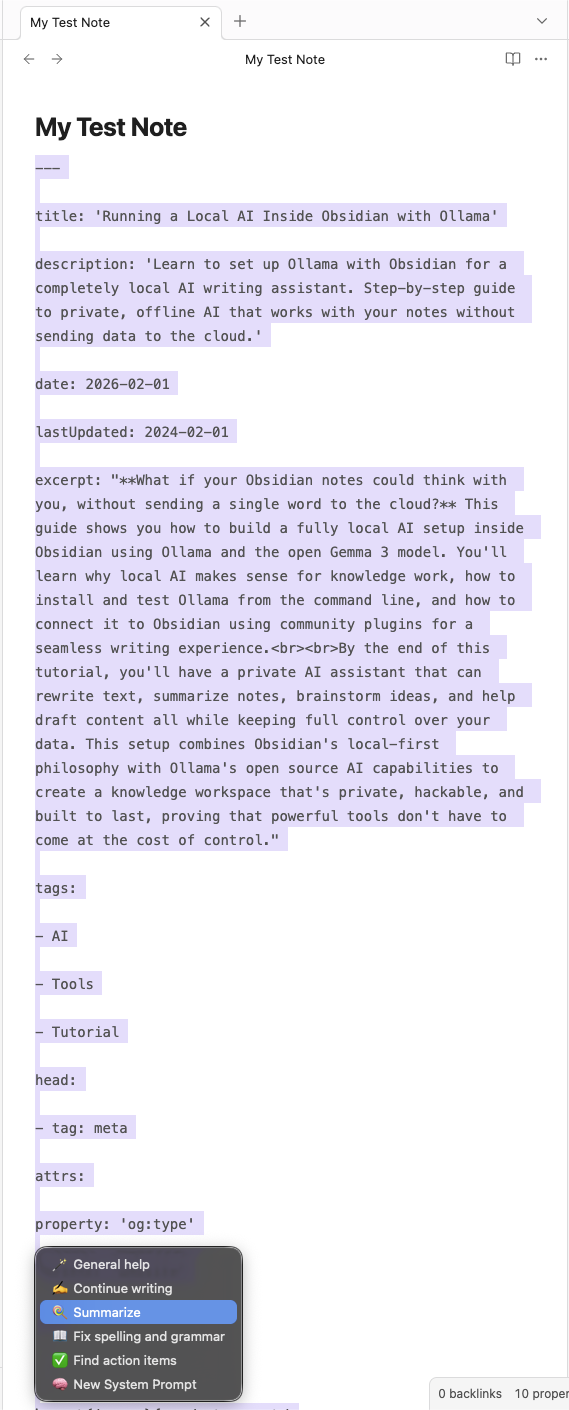
Let’s say I’ve written this article in Obsidian first and wanted to summarize it. I would select the text and use the context menu to choose “Summarize”.
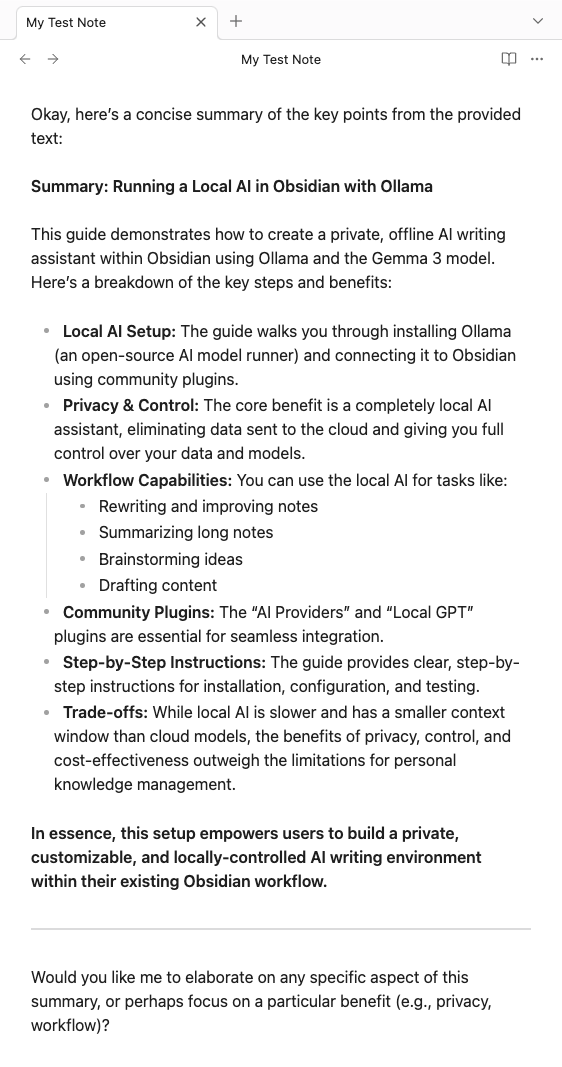
Gemma 3 would then generate a concise summary of the selected content directly at the end of my note (this can be configured).
Using the Action Palette
Section titled “Using the Action Palette”The action palette allows you to type custom prompts and interact with Local GPT more freely.
- Open any note in Obsidian.
- Press the hot key you assigned for “Local GPT: Action Palette” (e.g., ⌘ + J). It will open the action palette where you can type your prompt.
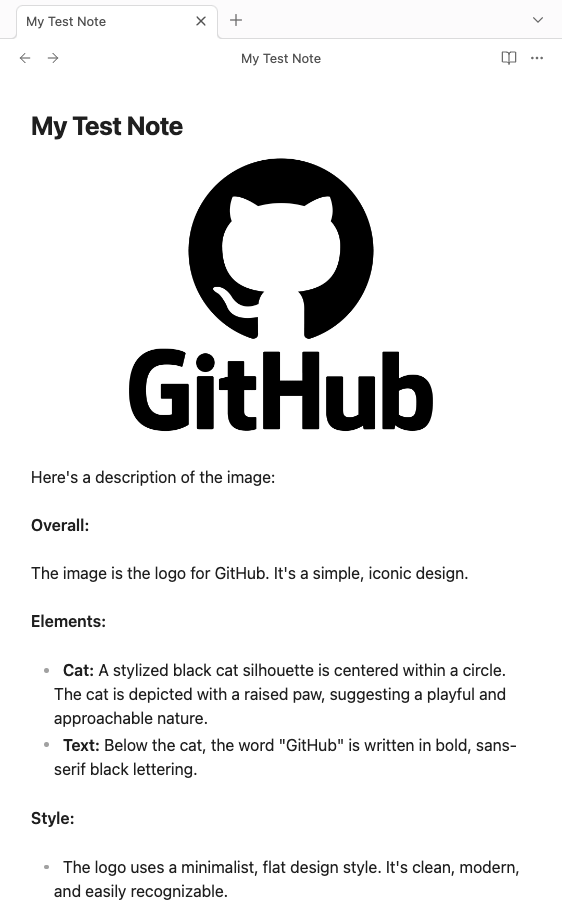
Let’s say I want to analyze an image to describe its content. I would select the image in my note, open the action palette, and type: “Describe this image!”
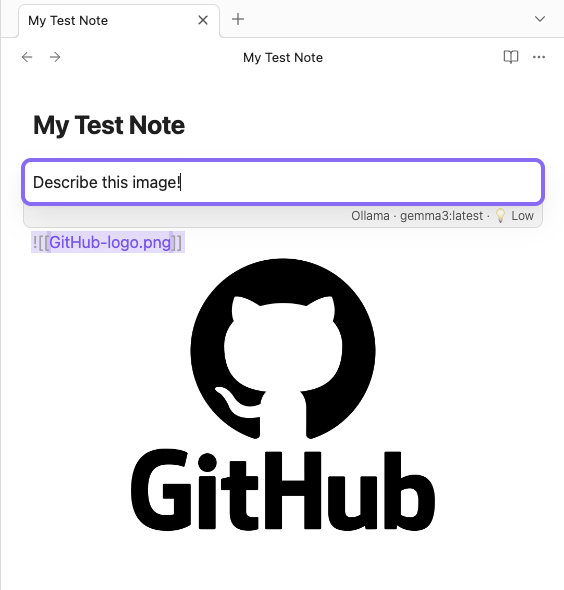
The model would then generate a description of the image directly in my note.
Everyday Use Cases That Actually Feel Useful
Section titled “Everyday Use Cases That Actually Feel Useful”I just scratched the surface of what you can do with this setup, and honestly, it’s pretty useful for specific tasks. Gemma 3 works well for close-to-the-text stuff: cleaning up messy first drafts, turning rambling meeting notes into actual bullet points, or getting a quick summary when I don’t want to reread a long note.
Response times are decent for most tasks. Not instant, but fast enough to keep you in the flow.
Where I use it most is rewriting awkward sentences, expanding bullet points when I need more detail, or brainstorming different ways to phrase something. It’s also surprisingly good at catching unclear writing that I might miss.
But it definitely has limits. It can’t access other notes in my vault (just the current one), struggles with complex reasoning, and sometimes gives generic responses if your prompt is too vague. I’m also not sure how well it handles really technical content as I’ve had mixed results there.
The key thing I’ve learned is that it works best as an editing partner for stuff you’ve already written, rather than generating ideas from scratch.
Maybe a more powerful setup could mix local and cloud models, using local for sensitive stuff and cloud for heavy lifting when needed. But for now, this local-first approach feels like a solid step toward more private, controllable AI in my writing workflow.
Trade-Offs (And Why They’re Worth It)
Section titled “Trade-Offs (And Why They’re Worth It)”Local AI isn’t perfect:
- Slower than cloud-hosted models
- Smaller context windows
- Less immediate “wow” factor than other cloud paid systems
But in exchange, you get:
- Privacy by default
- Zero marginal cost
- Full control over models and prompts
- No vendor dependency or platform lock-in
For personal knowledge management and everyday writing, that trade-off is often not just acceptable, but desirable.
Local AI inside Obsidian isn’t about chasing the biggest model: it’s about reclaiming agency over how you think and write. By combining a local-first notes app with open models running through Ollama, you get an AI workflow that is private, hackable, and built to last. In a world increasingly defined by opaque clouds and locked platforms, this setup quietly proves that powerful tools don’t have to come at the cost of control.
If you try out this setup, let me know how it goes! Share your experiences, tips, or custom workflows in our social platforms.
Happy note-taking!